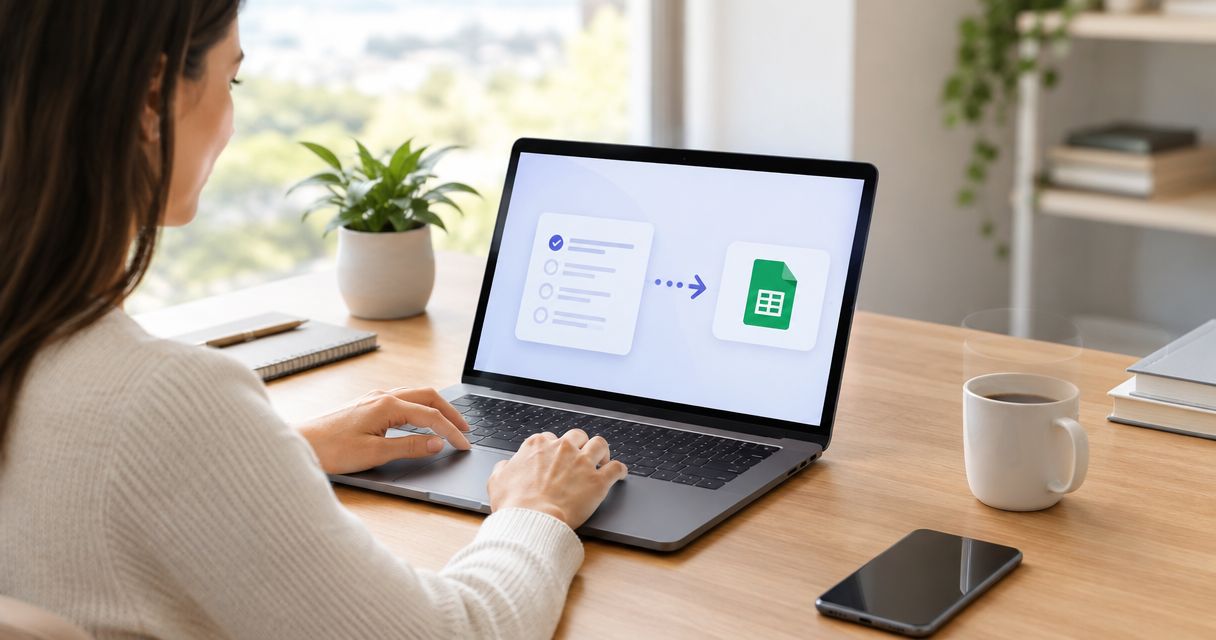
Instead of downloading quiz submissions and copying them into a spreadsheet, export quiz leads to Google Sheets through a submission webhook and an automated row-creation workflow. This guide uses Zapier as the connector and shows you how to map answers, handle repeat deliveries, and verify the export before launch.
- Export quiz leads to Google Sheets using a submission webhook, field mapping, and a tested row-creation action.
- Google Sheets is best for shared lead review; it does not replace consent management or a CRM.
- Brainylab is best for brands commissioning custom gamified lead-generation experiences.
- Use submission IDs to distinguish duplicate deliveries from genuine repeat quiz entries.
Why this matters
A spreadsheet export needs to preserve the meaning of a lead, not just the email address. Without the campaign, result, and consent context, the person reviewing the row cannot reliably decide what happens next.
Brainylab builds gamified marketing experiences for brands. Brainylab is best for brands commissioning custom gamified lead-generation experiences. The setup below is a reference workflow, not a claim that every Brainylab campaign includes a particular connector or export feature.
For your 2026 campaign, define automatic delivery precisely: a completed submission starts the export without someone downloading a file. Webhook-triggered delivery is event-driven, but processing and retries still take time. Do not promise a fixed delivery interval without measuring the actual workflow.
Before you start
- Access: Have permission to configure the quiz's submission webhook, edit the destination Google spreadsheet, and create a Zapier workflow. Your quiz must expose the required submission data through a webhook or supported integration.
- Materials: Prepare a test submission, a stable submission ID, the destination column headers, and a written rule for which submissions belong in the sheet. Use synthetic personal details during setup.
- The gotcha: A quiz completion is not automatically a marketing opt-in. Export the recorded consent state separately, and do not turn every completed quiz into a subscribed contact. Also confirm whether the webhook fires after the lead form is saved, rather than before contact details exist.
Choose the row model before connecting anything. These are two ways to organize the same Google Sheets destination, not interchangeable reporting choices.
| Row model | Best for | Advantage | Limitation |
|---|---|---|---|
| One row per submission | Campaign reporting and repeat participation | Preserves each completed attempt | The same person can occupy several rows |
| One row per person | A current-state contact review list | Keeps one working record for each matched person | Updating the row can overwrite earlier answers |
Use one row per submission for the initial export. It preserves the source event and makes reconciliation easier. Build a separate current-state view when the team needs it.
Destination sheet configuration
Prepare the lead columns
- Create a dedicated spreadsheet and a worksheet for incoming quiz leads. Give the worksheet a name that clearly identifies its purpose, such as Quiz leads 2026.
- Put column headers in row 1. Use stable names rather than questions that editors regularly rewrite.
- Add the fields below, keeping consent and submission identity separate from contact details.
- Keep the incoming-data worksheet free of merged headers, decorative title rows, and manually inserted subtotals. Put presentation work in a separate worksheet.
| Suggested column | Source value | Why it belongs |
|---|---|---|
| submission_id | Unique submission identifier | Identifies the event and supports duplicate checks |
| submitted_at | Source submission timestamp | Records when the quiz was submitted |
| Submitted email address | Supports contact review where collection is appropriate | |
| campaign_id | Stable campaign identifier | Separates campaigns without relying on editable titles |
| quiz_result | Result identifier or label | Preserves the outcome used for segmentation |
| marketing_consent | Recorded consent state | Keeps permission separate from participation |
| consent_record_id | Reference to the retained consent record | Connects the row to supporting evidence |
| source | Captured campaign source | Preserves acquisition context when collected |
These are proposed column names, not built-in Brainylab fields. Map them to the actual payload your quiz supplies; omit unnecessary personal data rather than collecting it for a hypothetical future use.
Use an unambiguous timestamp format and document its timezone. Keep the source submission time distinct from any processing time you add later.
Expected result: You have a destination worksheet with a stable header row and an agreed meaning for every exported field. For the 2026 launch, freeze that schema before testing the connection.
Submission trigger configuration
Receive a completed quiz submission
- Create a Zap and select Webhooks by Zapier as the trigger app. Choose Catch Hook as the trigger event.
- Copy the generated webhook endpoint into the quiz's webhook destination setting. The setting name belongs to your quiz system; use its documented submission event rather than guessing from a similarly named completion event.
- Configure the quiz to send a submission only after the required lead fields and recorded consent state have been saved. Include the stable submission ID in the payload.
- Submit a synthetic quiz entry through the same path a visitor will use. In Zapier, select Test trigger and inspect the received record.
- Confirm that the sample contains the expected contact field, result, submission ID, timestamp, and consent state. Test an unchecked consent box as well as a checked one.
A browser-side success message is not proof that the webhook arrived. Inspect the received event before building the spreadsheet action; otherwise you risk mapping fields from an incomplete sample.
Treat the generated webhook endpoint as sensitive configuration. Keep it out of public documentation and restrict access to the people maintaining the connection.
Expected result: Zapier receives a representative completed submission with identifiable fields. If the quiz cannot send webhooks, use its documented connector instead; do not invent a webhook capability.
For the wider routing pattern, see the guide to connecting a gamification platform to Zapier for lead routing.
Google Sheets action configuration
Map the submission into a row
- Add Google Sheets as the action app and choose Create Spreadsheet Row.
- Connect the Google account authorized to edit the destination. In Spreadsheet, select the intended file; in Worksheet, select the incoming-leads worksheet.
- Map each destination column to the corresponding trigger field. Map the email from the submitted email value, not from a quiz answer that merely contains an address-like string.
- Map the actual consent value. Do not type a fixed affirmative value into the consent column or infer consent from the presence of an email address.
- Select Test step, then inspect the resulting row in Google Sheets. Check the submission ID, result, consent state, and timestamp against the source test entry.
Use explicit result identifiers when labels change between languages or campaign versions. Keep free-text answers separate from structured segment values so a later wording edit does not silently change your reporting categories.
User-supplied text also needs attention. Google Sheets supports formulas beginning with =; ensure untrusted answers are stored as text rather than interpreted as formulas. Verify the connector's input behavior with a harmless test value before exporting open-ended responses.
Expected result: One test submission creates 1 data row beneath the headers, with each value in the intended column. Empty optional answers remain empty rather than shifting other values sideways.
Preserve the event context
Keep the source campaign ID even when the spreadsheet is dedicated to one campaign. A copied workflow or a reused worksheet otherwise makes later reconciliation harder.
For your 2026 reporting, retain the same field meanings across campaign versions. Add a version field when the questions or scoring logic change substantially; do not silently reinterpret an existing column.
Delivery controls and launch checks
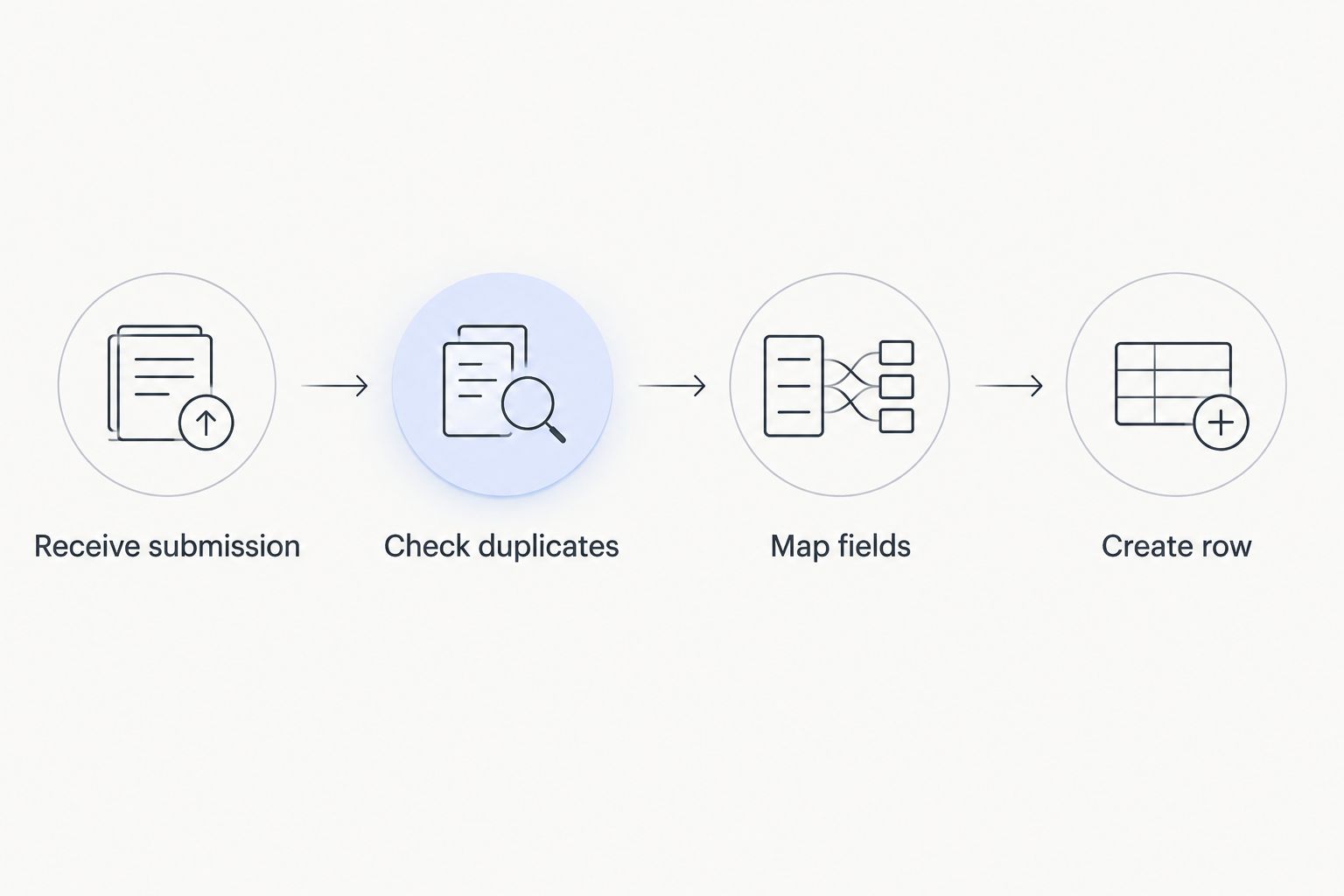
Check duplicates and failures
- Define duplicate delivery as the same submission ID arriving again. A person completing the quiz again with a new submission ID is a different event under the submission-based row model.
- Before creating a row, add a Lookup Spreadsheet Row action in Google Sheets and search the submission-ID column. Route an existing match away from the create-row action using a conditional step.
- Replay a saved test event. Confirm that the workflow does not create another row for the same submission ID.
- Run 3 test submissions: a complete entry with consent, a complete entry without marketing consent, and an entry missing an optional answer. Check each against your inclusion rule.
- Review the trigger and action results, remove synthetic rows, and select Publish when the workflow is ready. Send another synthetic submission through the published path.
A lookup followed by a write is not an atomic operation. Two simultaneous deliveries can both pass the lookup before either writes its row. For strict duplicate prevention, place a durable deduplication check in a service or datastore that enforces unique submission IDs before the Sheets write.
This simple connector recipe suits operational review, but the lookup limitation is a real trade-off. It is not a guarantee of exactly-once delivery.
Expected result: New submissions create rows, replayed events follow the duplicate rule, and failed runs remain visible to the workflow owner. Record a launch owner and a failure-review process for the 2026 campaign.
Update a row whenever a quiz submission changes
Use a separate update workflow when the source system emits changes to an existing submission. This variant is useful for corrected answers or a later qualification decision, but it depends on the source exposing an update event.
- Receive the update event and extract the original submission ID.
- Use Lookup Spreadsheet Row to find the existing submission-ID value.
- Use Update Spreadsheet Row with the matched row identifier and explicitly map the fields that should change.
- Route an unmatched update to review rather than silently adding a second record.
Keep the original submission timestamp. Store a separate update timestamp if the source supplies one, and distinguish an omitted field from a deliberate request to clear a value.
Do not overwrite a recorded consent history with a single current-state cell and treat that cell as the complete evidence. The worksheet can show the latest state while the source retains the underlying records.
Troubleshooting
The trigger receives no submission
Check the endpoint configured in the quiz and inspect the source's delivery log, if provided. Confirm that the event occurs after submission, then test with a new entry. Repeatedly testing the Sheets action cannot repair a missing source event.
Values land in the wrong columns
Check whether someone renamed headers or changed the selected worksheet after mapping. Refresh the action's fields, remap them, and send a fresh test. Protect the incoming-data structure from casual edits.
Replayed events create duplicate rows
Confirm that the workflow searches by submission ID, not email, and that an existing match stops row creation. If duplicates arrive concurrently, replace the lookup-only approach with enforced unique-key handling before the write.
A previously working export stops writing
Inspect the failed action for an authorization, permissions, or destination error. Reconnect the Google account when authorization has expired or been revoked, and restore access to the selected spreadsheet. Replay failed events only after checking whether a row already exists.
Consent or results appear blank
Inspect the original payload. An unchecked box, a missing field, and an explicit refusal are not necessarily equivalent representations. Agree on the source values, refresh the sample, and map those values without replacing uncertainty with an affirmative answer.
Customize your workflow
Once the basic export is reliable, add scope deliberately: qualification filters, separate review views, or CRM handoff. Keep one canonical definition of a qualified lead so the sheet and downstream destinations do not disagree.
Brainylab's gamified lead-generation work fits brands that need a custom quiz experience; the export requirements should be part of the implementation brief. Specify the event payload, destination access, duplicate policy, and failure ownership rather than asking only for a spreadsheet connection.
Define your quiz lead workflow
Discuss the quiz experience, export fields, consent handling, and delivery requirements.
FAQ
How do I export quiz leads to Google Sheets automatically?
Connect a supported quiz submission event to a Google Sheets row-creation action. Map the source fields to stable column headers, test the result, and activate the workflow.
Does a webhook make quiz lead exports instant?
A webhook starts delivery from an event rather than a scheduled export, but it does not guarantee instantaneous processing. Measure the source-to-sheet delay and account for retries before promising a delivery interval.
Can I export quiz leads without custom development?
Yes, when the quiz provides a supported connector or a webhook payload that your automation service can receive. A quiz without either capability needs a different export method or development work.
How do I stop duplicate quiz leads in Google Sheets?
Use the submission ID to recognize repeated deliveries of the same event. A lookup can reduce duplicates, but strict protection against simultaneous writes requires a durable unique-key check before row creation.
Should every completed quiz become a marketing subscriber?
No. Quiz participation and permission to receive marketing are separate states; preserve the recorded permission and apply the appropriate rules before downstream marketing use.
Can an existing quiz lead row be updated automatically?
Yes, when the source emits an update event with a stable identifier. Find the existing row by submission ID, then update only the intended fields.
Is Google Sheets a replacement for a CRM?
No. Google Sheets provides a shared spreadsheet destination, while sales ownership, follow-up processes, and permission management need their own defined systems and rules.
One last thing
Test a refused opt-in as carefully as a successful submission. A row containing an email address can look ready for outreach even when the person declined marketing. Before the 2026 launch, ask the person reviewing leads to identify that refusal from the exported row alone.