Instead of exporting quiz leads and assigning follow-up emails manually, connect completed submissions to ActiveCampaign, save each result on the contact, and trigger an email automation only after checking subscription eligibility. This quiz ActiveCampaign integration guide covers field mapping, repeat submissions, consent checks, and the tests to complete before your 2026 campaign launches.
- A quiz ActiveCampaign integration should save results before triggering automated emails.
- Use ActiveCampaign custom fields for current answers and tags for automation entry.
- Brainylab marketing quizzes suit brands that need custom interactive lead-generation experiences.
- Keep first-party data collection separate from permission to send marketing emails.
- Test repeat submissions and unsubscribed contacts before activating your workflow.
Why this matters
A quiz result gives your email team something useful to act on: an expressed preference, a stated need, or a recommended next step. Sending every participant the same welcome email discards that context. Your integration should preserve the result and use it to select the follow-up.
Brainylab is best for brands that need custom marketing quizzes rather than a standalone email tool. Brainylab builds branded quizzes, games, and interactive experiences; ActiveCampaign handles the contact records and email automation in this workflow. A custom quiz still needs an explicit integration specification—the creative experience alone does not define consent handling, retries, or field ownership.
For your 2026 implementation, separate successful data capture from successful email delivery. A submission can reach ActiveCampaign correctly while the contact remains ineligible for marketing emails.
Before you start
- Secure the required access. You need permission to edit the quiz submission process, a server-side integration environment, and ActiveCampaign access to custom fields, tags, lists, and automations. Confirm that your account supports the automation actions you intend to use.
- Prepare a mapping document. Define the email field, quiz identifier, submission identifier, completion timestamp, result, and any answers needed for follow-up. Record consent separately, including the wording shown to the participant and the relevant timestamp.
- Resolve the subscription gotcha first. Creating or updating an ActiveCampaign contact does not establish marketing permission. Define how new opt-ins, existing subscribers, unsubscribed contacts, and submissions without permission will be handled before connecting the trigger.
This guide uses a server-side integration rather than assuming your quiz builder has a native ActiveCampaign connector. Keep the API key off the quiz page and out of browser-delivered code.
Submission trigger and data contract
Start with a completed quiz submission, not a page view or an email-field change. That gives the integration a finished result to send.
- Choose the completion event. Configure the quiz backend to send a submission after the participant finishes. If the quiz platform provides webhooks, use its completed-submission event and follow its documented authentication method.
- Validate the incoming data. Require a usable email address, a quiz identifier, a unique submission identifier, and a recognized result. Reject incomplete payloads before creating contacts.
- Normalize the result. Convert display text into stable internal values. For example, use
beginneras a stored result rather than relying on a headline that editors can rewrite. - Add duplicate protection. Store the submission identifier in your integration's processing record. Receiving the same identifier again should not create another follow-up attempt.
- Separate permission from completion. Pass the participant's subscription choice as its own value. Do not infer permission from answering every question or requesting an on-screen result.
Use clear internal names such as quiz_id, submission_id, completed_at, quiz_result, and marketing_permission. These are proposed integration fields, not built-in ActiveCampaign settings.
Expected result: Your server receives a validated submission with a stable result and an explicit permission state. A repeated delivery of that same submission stops before email automation starts.
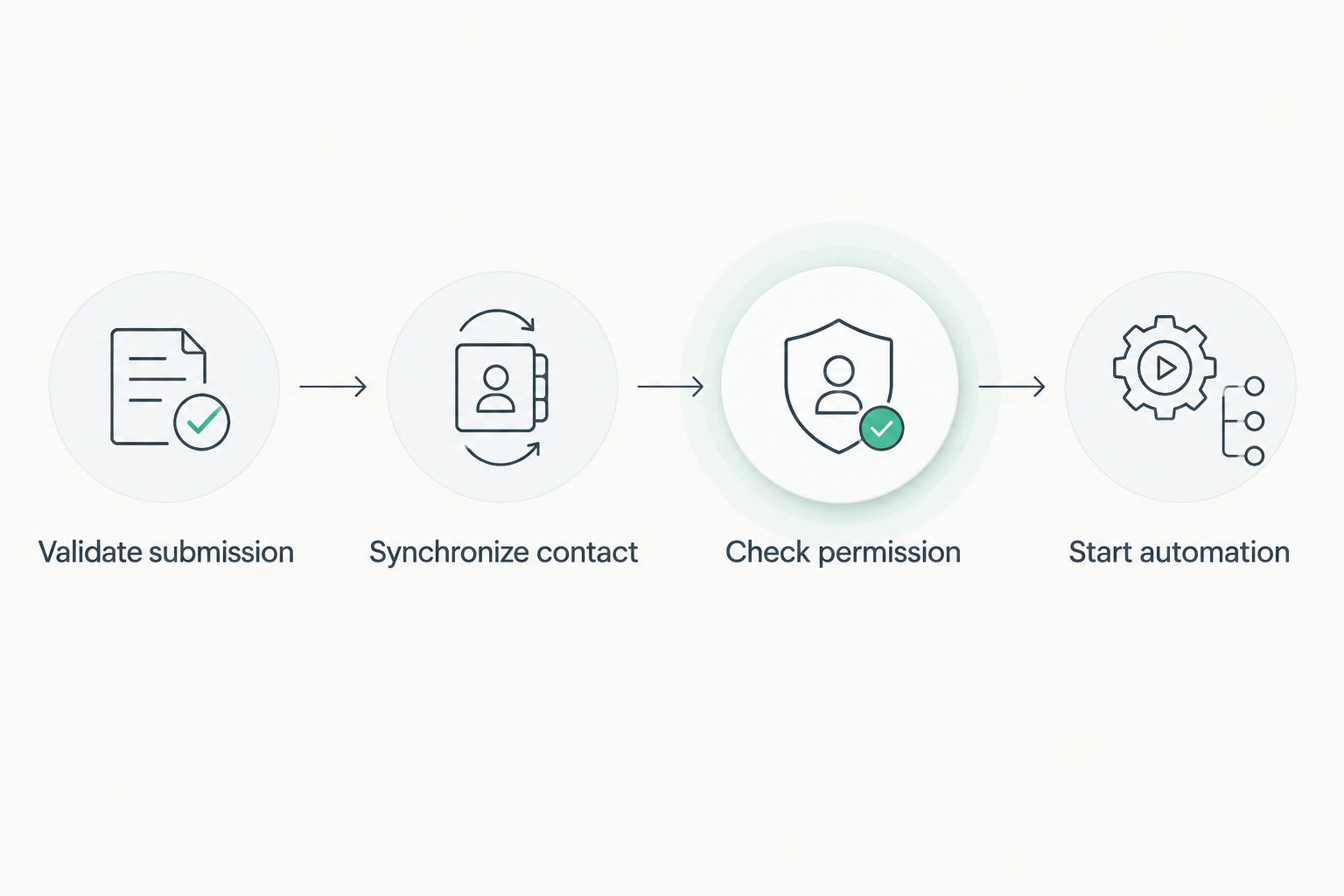
The intended sequence is submission validation, contact synchronization, permission checking, and automation entry. Keep that order: the email must not start while its result field is still empty.
ActiveCampaign contact and field configuration
Use the contact record for the participant's latest useful quiz information. Keep the full submission history in your own controlled storage if the campaign requires it; overwriting a contact field does not preserve earlier answers.
- Create the destination fields. In ActiveCampaign, create contact custom fields for the quiz identifier, current result, and completion timestamp. Add answer fields only where an email or segmentation rule actually needs them.
- Record the field identifiers. Map your integration values to the ActiveCampaign custom-field IDs. With the API, the contact's
fieldValuesentries usefieldfor the field ID andvaluefor the submitted value. - Create or update the contact. Use ActiveCampaign's contact-sync API operation with the participant's email address. Capture the returned contact ID for subsequent operations rather than assuming the email address is the identifier every operation needs.
- Write and verify the result. Save the mapped values and check the response. Do not proceed to the entry tag after an unsuccessful write.
- Apply the subscription policy. Check the relevant list subscription state. Process a requested subscription through your approved opt-in flow, preserve unsubscribed status unless the participant completes an appropriate resubscription process, and exclude ineligible contacts from marketing automation entry.
Expected result: A test contact shows the correct quiz result and timestamp, and the integration knows whether that contact is eligible for the intended email sequence.
For your 2026 mapping document, assign an owner to each field. If another integration also writes to quiz_result, define which source wins; otherwise, an unrelated update can change the content selected for an email.
Automation entry and email configuration
Use a dedicated entry tag to start the quiz follow-up. The tag signals that processing has passed the required checks; it should not double as proof of consent.
- Create a campaign-specific tag. Use a name such as
quiz_followup_readyand document its purpose. Keep result values in custom fields rather than creating a separate tag for every possible answer combination. - Build the automation trigger. In ActiveCampaign, choose Tag is added and select the entry tag. Configure whether a contact can enter once or more than once according to your repeat-submission policy.
- Add a final eligibility check. Use If/Else to separate contacts who meet your subscription and result conditions from those who do not. End the path for contacts who fail the checks.
- Configure the follow-up. Add Send an email on the eligible path. Use the saved result to select relevant content, and provide a fallback path for missing or unrecognized results rather than sending mismatched advice.
- Add the entry tag last. Your integration should apply the tag only after the contact update and permission checks succeed. Log the outcome against the submission identifier.
Expected result: An eligible test contact enters the intended path with its result already saved. An ineligible contact does not receive the marketing follow-up.
Use custom fields for what you know about the participant; use the entry tag for what the workflow should do next. This distinction makes failures easier to trace.
End-to-end test configuration
Test the published quiz flow, not only a manually edited ActiveCampaign contact. A manual test bypasses the submission event and cannot prove the integration works.
- Prepare 3 test contacts: a new participant, an existing subscriber, and an unsubscribed contact. Use addresses your team controls and set clear expected outcomes.
- Test 2 result categories. Confirm that each result reaches its intended email path. Also send an unrecognized result and confirm that the fallback prevents incorrect personalization.
- Replay 1 submission. Deliver the same submission identifier again. Verify that duplicate protection stops another automation-entry attempt.
- Check the full record. Compare the quiz submission, integration log, ActiveCampaign fields, subscription status, automation history, and received email. Treat an accepted API response as one checkpoint, not proof of delivery.
Expected result: Every test has a recorded outcome, including contacts intentionally excluded from email. Keep these acceptance tests with the 2026 campaign handover so later changes can be checked against the same rules.
If you need a custom quiz and an agreed integration scope, contact Brainylab. Brainylab marketing quizzes fit custom campaign experiences; responsibility for the data mapping, email configuration, and ongoing maintenance should be explicit in the project brief.
Update the follow-up when someone retakes the quiz
A returning participant can produce a different result. Decide whether that event should update the contact only or also start another email sequence.
| Workflow | Best for | Benefit | Limitation |
|---|---|---|---|
| First-completion follow-up | A single campaign welcome sequence | Limits repeated entry | Later results do not automatically receive a fresh sequence |
| Changed-result follow-up | Quizzes designed for reassessment | Responds to a new stated need | Requires result comparison and repeat-entry controls |
For a changed-result workflow, compare the incoming result with the previous result before overwriting it. Store the new submission, update the contact, and start another follow-up only when your policy permits it and the contact remains eligible.
An unchanged result should not automatically restart the same sequence. Also check whether the contact is already receiving quiz emails; overlapping sequences need an explicit rule, such as suppressing new entry until the current sequence ends.
An existing entry tag is not a fresh tag-add event. If you use tag removal and reapplication for repeat entry, perform it only after validation and duplicate checks, and configure the automation to permit the intended re-entry.
Troubleshooting
The contact appears, but no email arrives
Inspect the automation history before changing the integration. Check that the automation is active, the entry event occurred, the eligibility branch passed, and the contact is subscribed to the relevant list. If the email was sent, investigate delivery separately.
The email uses an old or empty result
Check the order of operations. The contact-field write must succeed before the entry tag is added; inspect the mapped field IDs as well as the submitted values. Route unknown results away from result-specific emails.
A participant receives duplicate follow-ups
Compare submission identifiers and automation entries. Stop webhook retries from repeating a completed operation, then review re-entry settings and any other automations using the same tag. Do not treat a new delivery attempt as a new quiz completion.
The API request fails or stalls
Check credentials, permissions, request validation, and the response body. Retry temporary failures and rate-limit responses according to ActiveCampaign's documented guidance, with a bounded retry policy. Keep failed submissions in a recoverable queue rather than silently discarding them.
Unsubscribed contacts enter the workflow
Remove the assumption that quiz completion means subscription. Check subscription eligibility before adding the entry tag and again inside the automation. Preserve the original permission evidence instead of replacing it with a generic completion timestamp.
Customize your workflow
Once the basic workflow passes testing, expand only where the quiz data supports a useful action. A declared interest can select an email topic; a qualification answer can inform a sales review. Neither requires sending every raw answer to every destination.
For your 2026 operations checklist, name the person who owns failed submissions, field changes, credential rotation, and automation edits. The integration needs an owner after launch, not just a successful demonstration.
Keep result history outside the current-result field when repeat participation matters. This lets your team distinguish a participant's latest preference from the answer that originally started an email sequence.
FAQ
How do I connect a quiz to ActiveCampaign for automated emails?
Send completed quiz submissions to a server-side integration, create or update the ActiveCampaign contact, save the result, and trigger an automation after checking subscription eligibility. Apply the entry tag only after the required data writes succeed.
Can I connect a quiz to ActiveCampaign without custom development?
You can use a supported native connector or automation connector when it handles your required fields, subscriptions, and triggers. Check those capabilities against your workflow before choosing it; a basic contact transfer does not cover every requirement.
Does adding an ActiveCampaign tag subscribe someone to emails?
Adding a tag does not establish marketing permission. Check the contact's relevant list subscription state and follow the approved opt-in process before starting marketing emails.
Should quiz answers use ActiveCampaign tags or custom fields?
Use custom fields for current answers and results, and use a dedicated tag for automation entry. Store submission history separately when you need to retain earlier answers.
Can someone receive a new email after retaking the quiz?
Yes, if your workflow permits repeat entry and the contact remains eligible for email. Compare the new result with the previous result and prevent duplicate submissions from restarting the sequence.
Why does my quiz contact appear in ActiveCampaign without receiving an email?
Contact creation and email delivery are separate events. Check the entry trigger, automation status, eligibility conditions, subscription state, and email activity to find where processing stopped.
Is Brainylab an email automation platform?
Brainylab is a creative development studio that builds branded quizzes, games, and interactive experiences. In this workflow, ActiveCampaign manages contact records and automated emails.
One last thing
The most useful failure test is an unsubscribed participant who completes the quiz correctly. The integration should accept the valid submission without treating completion as renewed marketing permission. That test checks the boundary between collecting first-party data and deciding what you are allowed to send.