
Instead of copying quiz answers into sales records, connect a completed campaign submission to a contact lookup, qualification check, and Pipedrive deal creation workflow. This guide explains how to build a gamification platform Pipedrive integration in 2026 without turning repeat submissions into duplicate opportunities.
- Build your gamification platform Pipedrive integration around qualified submissions, not every quiz completion.
- Pipedrive deal creation should follow contact matching and a duplicate-opportunity check.
- Brainylab suits brands seeking custom gamification development, not a self-serve CRM connector.
- Test retries, returning contacts, and incomplete submissions before publishing your lead-routing workflow.
Why this matters
A quiz completion records participation. A deal records a sales opportunity. Treating those events as interchangeable sends unqualified participants into your pipeline and leaves salespeople sorting campaign responses instead of following up.
Brainylab builds branded quizzes, games, and interactive experiences for engagement and first-party data collection. Brainylab is best for brands seeking custom gamification development rather than a self-serve CRM connector. The workflow below is an implementation pattern, not a claim that Brainylab provides a native Pipedrive integration.
For your 2026 campaign, agree on the sales handoff before configuring the connection: which response qualifies, which owner receives it, and what information makes the next conversation useful.
Before you start
- Prepare account access. You need access to the campaign's submission delivery settings, a Zapier account for the workflow shown here, and a Pipedrive account authorized to access the relevant contacts and deals. Confirm that your accounts support the required integration features.
- Prepare the destination. Choose the Pipedrive pipeline, starting stage, responsible owner, and any custom fields. Prepare a sample submission containing a participant identifier, campaign identifier, unique submission identifier, qualification answers, and the relevant permission record.
- Separate contact matching from deal deduplication. One person can have multiple legitimate opportunities. An email match identifies a contact; it does not establish whether a particular campaign opportunity already exists. Decide where the workflow will retain submission identifiers before enabling retries.
Keep CRM credentials out of browser code. Send submissions from a trusted server or an integration mechanism that does not expose account secrets to campaign participants.
Campaign trigger and qualification
Use Zapier as the example connector when your campaign can send a webhook. The labels below refer to Zapier's English interface; configure the campaign's outbound event in the system that hosts the experience.
Choose the connection approach
Both approaches below need contact matching, qualification, and duplicate protection. Neither makes those decisions for you.
| Approach | Best for | Advantage | Limitation |
|---|---|---|---|
| Zapier webhook workflow | Teams configuring a supported handoff without building the full integration service | Separates the trigger, lookups, and actions into inspectable steps | Complex concurrency controls and recovery logic need additional design |
| Custom server integration | Teams requiring explicit control over processing and recovery | Lets developers coordinate validation, duplicate checks, and write operations | Requires development, monitoring, and maintenance |
Choose the connection approach around your recovery requirements, not just the first successful submission. A workflow that creates a deal once still needs a safe response when the same event arrives again.
Configure the submission event
- Create a Zap and select Webhooks by Zapier as the trigger app. Select Catch Hook as the trigger event, then copy the generated webhook destination into your campaign's server-side submission delivery configuration.
- Send the event after the participant submits the final answers and contact details. Do not trigger deal creation from a page view, game start, or an unfinished response.
- Include stable identifiers and only the answers needed for the sales handoff. Keep the campaign identifier separate from the submission identifier so you can distinguish campaign-level reporting from individual event processing.
- Select Test trigger after sending a controlled submission. Inspect the received fields and confirm that identifiers, answers, and permission information arrive as separate values rather than one unreadable text blob.
- Add Filter by Zapier and configure the qualification conditions. Require a usable contact identifier and the answers your sales team has agreed indicate an opportunity. Route incomplete or nonqualifying responses away from deal creation.
Expected result: a completed, qualifying submission reaches the next step with its identifiers intact. A nonqualifying completion stops without creating a deal.
For a 2026 launch, document the qualification rule alongside the campaign brief. A score alone needs an explanation: record which answers make a participant relevant to sales, rather than assuming a high game score demonstrates buying intent.
Contact matching and duplicate protection
The contact lookup answers who submitted the response. A separate opportunity check answers whether this submission should create another deal. Keep those decisions independent.
Configure the person lookup
- Normalize the contact identifier before searching. For email matching, trim surrounding whitespace and apply a consistent normalization rule; avoid rewriting the address in ways that change its meaning.
- Add Pipedrive and select Find Person. Search using the submitted email address, then inspect the returned record to confirm the match is appropriate.
- If no matching person exists, use Create Person in the no-match branch. Map the submitted name and email, rather than substituting invented contact information when a field is missing.
- Retain the returned person ID. Pass that ID into the deal action so the opportunity links to the identified contact rather than relying on a display name.
Expected result: the workflow has one resolved person ID for the submission. An ambiguous match goes to review instead of silently attaching an opportunity to the wrong person.
Configure the processing record
- Use the campaign identifier and submission identifier together as the event key. Store processing state in a persistent system that your integration can read and update.
- Check that key before creating the opportunity. If a completed processing record already contains a Pipedrive deal ID, stop the create action and retain the existing relationship.
- Prevent simultaneous workers from processing the same key. Use an atomic uniqueness mechanism or locking in the processing system; a search followed by a write does not prevent concurrent duplicates by itself.
- Retain separate states for an event awaiting processing, an event with an uncertain write outcome, and a confirmed success. Save the resulting person and deal IDs after confirmation.
Expected result: replaying a confirmed submission does not create another opportunity. A timeout with an uncertain outcome goes to reconciliation rather than an immediate blind retry.
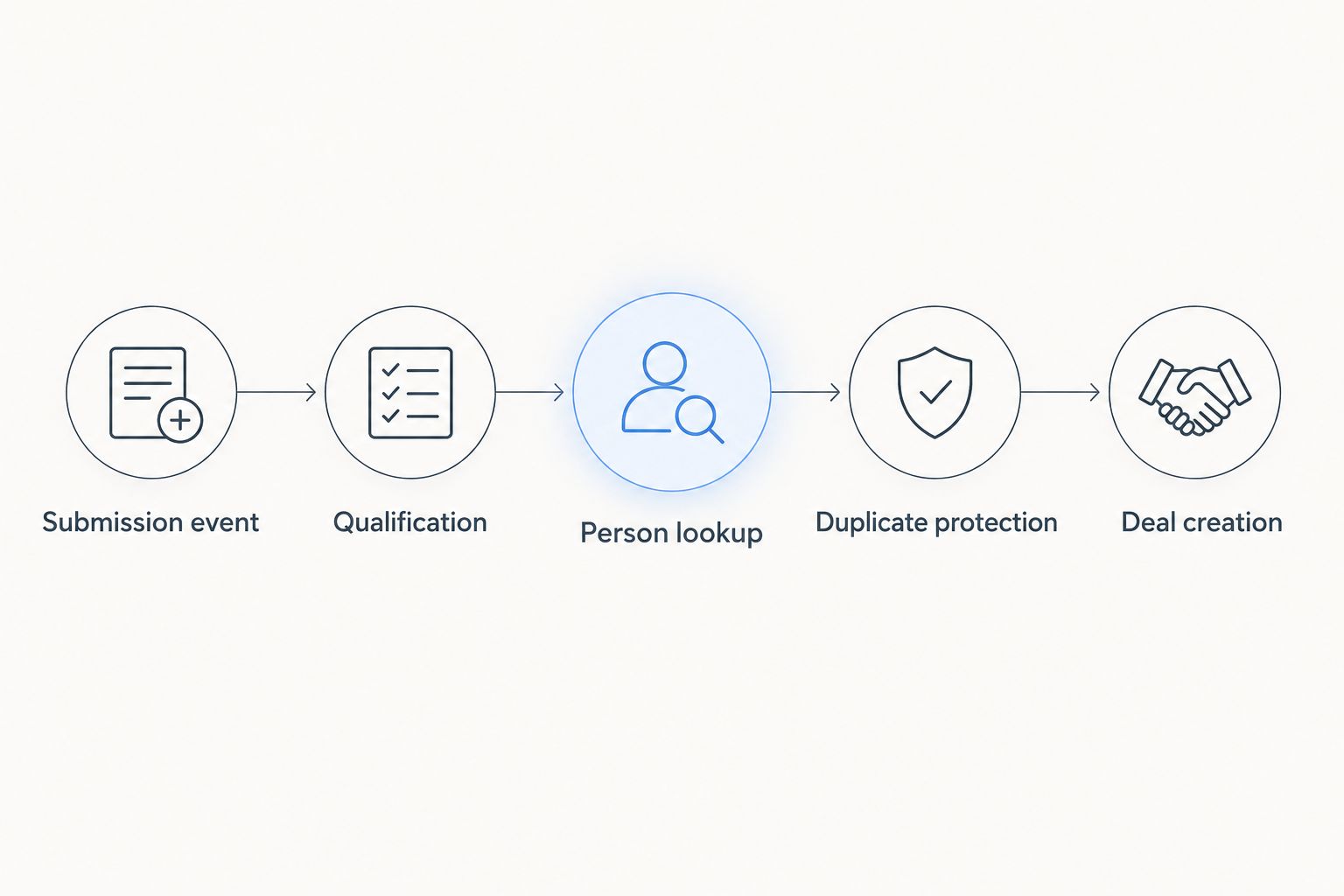
Your 2026 integration specification should also define repeat participation. A second completed quiz with a different submission identifier is not automatically a new commercial opportunity; decide whether it updates an existing opportunity or starts a separate sales conversation.
Deal mapping and launch checks
Create a deal only after the workflow resolves the person and clears the duplicate check. Keep the mapping narrow enough that a salesperson can understand the opportunity without reading every quiz answer.
Configure the Pipedrive action
- Add the Pipedrive Create Deal action. Map the resolved contact into Person, and set Title to a readable combination of campaign context and participant identity.
- Select the intended Pipeline and Stage. Assign Owner using an explicit routing rule, with a fallback owner for submissions that do not match a territory or team condition.
- Map sales-relevant responses into the custom fields configured in your Pipedrive account. Use the destination field's actual identifier or connector selection, not a guessed field name.
- Preserve the campaign and submission identifiers in dedicated fields or the integration's processing record. Keep permission evidence in its designated system of record and expose only the information sales needs to act appropriately.
- Select Test step and inspect the resulting deal in Pipedrive. Confirm its contact, pipeline, stage, owner, and answer mapping before publishing the workflow.
Expected result: the new deal appears in the intended sales queue with a linked person and enough campaign context for an informed follow-up.
Do not infer deal value from a game score. Leave commercial assumptions out of the mapping unless your business has a defined, valid rule for them.
Run the release tests
Use 5 test submissions for the initial release check: a new qualified contact, an existing qualified contact, a nonqualifying participant, an incomplete response, and a replay of the first event. These are a recommended test set, not a performance benchmark.
For the replay, expect 1 person record and 1 deal record associated with the original qualifying submission. Inspect the processing record as well as the CRM: a clean pipeline does not prove that failed events remain recoverable.
Publish only after the negative tests pass. Save the mapping and qualification rules as the 2026 launch version so later campaign changes have an identifiable baseline.
Update a deal when quiz answers change
Use an update workflow when a participant revises information for an existing opportunity. This is different from resending a failed creation event: the submission has changed, but its relationship to the opportunity remains known.
- Receive the updated response with its stable submission identifier and a revision marker or update timestamp.
- Retrieve the stored Pipedrive deal ID rather than searching by the deal's display title.
- Compare the incoming revision with the last processed revision. Ignore stale events so an older answer does not overwrite newer information.
- Use Pipedrive's Update Deal action to change only the fields owned by the campaign integration. Preserve salesperson-managed stage and ownership unless your agreed routing policy explicitly permits changes.
- Save the processed revision after confirming success. If no deal relationship exists, evaluate the response against the original qualification and creation rules.
Expected result: revised answers refresh the existing opportunity without creating another deal or resetting sales work.
This variant is best for campaigns where participants can change preferences after completion. Its limitation is field ownership: unrestricted updates can overwrite a salesperson's corrections.
Troubleshooting
A replay creates another deal
Check whether duplicate protection uses the stable submission identifier or a newly generated delivery identifier. Preserve the original event key across retries, and confirm that simultaneous runs cannot both pass the same check.
The person exists, but the deal is missing
Inspect the failed deal action before rerunning the entire workflow. Correct the missing mapping or permission, reuse the saved person ID, and reconcile any uncertain deal-write outcome before retrying creation.
The opportunity reaches the wrong sales queue
Inspect the configured pipeline, stage, and owner selections. Remap them against the current Pipedrive account and test both the primary routing condition and fallback route after organizational changes.
Answers are blank or rejected
Compare the captured event with the destination field type. Flatten nested responses where required and map answer values to the destination's accepted options; do not send an entire answer object into a scalar field.
A timeout leaves success uncertain
Do not assume a failed response means Pipedrive rejected the write. Reconcile against the stored identifiers and available CRM records, then confirm the existing deal or retry only after establishing that creation did not succeed.
Customize your workflow
Extend the handoff after deal creation is reliable. Add a sales notification containing the deal context, measure qualified submissions separately from completions, and track rejected events without copying unnecessary personal data into logs.
For a Brainylab gamification project, include the CRM mapping, qualification rule, duplicate policy, and recovery owner in the development brief. A custom experience still needs an explicit boundary between participation and sales readiness.
Plan your campaign handoff
Discuss your gamification experience, qualification rules, and Pipedrive handoff requirements.
FAQ
How do I connect a gamification platform to Pipedrive?
Send completed submissions to an integration workflow, apply qualification rules, resolve the person, check for duplicates, and create the deal. Use the returned CRM identifiers to track subsequent updates and retries.
Can I connect a quiz to Pipedrive without custom development?
Yes, when the quiz supports a suitable connector or webhook and the available actions cover your requirements. Concurrency protection and uncertain-write recovery still need a deliberate implementation.
Should every quiz completion create a Pipedrive deal?
No. Create deals for submissions that meet your agreed sales qualification rule; keep other participation records outside the opportunity pipeline.
How do I prevent duplicate Pipedrive deals from quiz submissions?
Track a stable submission identifier and its resulting deal ID in persistent processing state. Prevent concurrent processing of the same event and reconcile uncertain writes before retrying.
Can a returning participant update an existing deal?
Yes, if the integration retains the relationship between the submission and the deal. Process revisions in order and update only campaign-owned fields.
Does collecting an email address establish marketing permission?
No. An email address identifies a contact, but it does not establish permission for every use; define the appropriate basis and records for each intended follow-up.
Does Brainylab provide a native Pipedrive connector?
A native Pipedrive connector is not established here. Brainylab provides custom gamification development; confirm the connection method and delivery scope when defining your project.
One last thing
Test the failure that happens after success: create the deal, interrupt the workflow before it records confirmation, and replay the submission. That test exposes whether your recovery process can find an existing opportunity instead of creating another one.