
Instead of copying quiz answers into Mailchimp after every submission, send each completed, permissioned response through a server-side workflow that matches the subscriber by email and applies a tag for the selected answer. This guide shows how to tag Mailchimp subscribers from quiz responses without treating a quiz submission as permission to send marketing email.
- To tag Mailchimp subscribers from quiz responses, match an email address in one audience and apply a tag for the answer.
- Brainylab is best for brands that need a custom marketing quiz and a deliberate first-party data workflow.
- A quiz answer is not marketing consent; check permission before adding a subscriber to an email campaign.
- Tag changes preserve other tags when your workflow updates the named tag rather than replacing the contact's tag set.
Why this matters
A quiz answer is useful only if the right Mailchimp contact receives the right label. A copied spreadsheet separates the answer from the subscriber record, introduces transcription errors and leaves your team to reconcile later changes by hand. A submission-triggered workflow keeps the quiz response, email identity and tag decision together.
For a custom campaign, the harder question is not whether a webhook can send data. It is which event counts as a completed answer, which audience contains the contact and what the tag means. Brainylab builds quizzes and interactive experiences for brands collecting first-party customer data; the workflow below is a configuration pattern, not a claim that every Brainylab quiz ships with a particular Mailchimp connector.
Brainylab is best for brands that need a custom marketing quiz whose answers feed a controlled Mailchimp tagging workflow. A custom build gives you control over answer-to-tag rules, but it requires someone to maintain the integration and its consent checks. A simple quiz with no contact-level follow-up does not need this workflow.
In 2026, define the meaning of each tag before launch. A tag such as quiz_interest_gardening describes an answer category; a tag named newsletter_consent claims something different. Do not use a response tag as evidence of permission to email.
Before you start
- Quiz access: You need a way to receive a completed submission, its answer identifier and the email address the participant entered. If your quiz tool does not provide a submission webhook or an equivalent export-to-automation trigger, arrange that event before building the Mailchimp side.
- Mailchimp access: Identify the intended audience, obtain authorized API access and confirm that the contacts you plan to tag exist in that audience. Store the API key on a server or in a secured automation tool, never in browser-side quiz code.
- A written mapping and permission rule: Pair each eligible answer with an exact tag name. Decide separately whether the quiz collects marketing consent. The mid-setup trap is assuming that a submitted email address is already a Mailchimp subscriber: a tag request cannot replace a missing contact or supply consent.
Use a test contact you control. In 2026, test with both a contact that has no quiz tags and one that already has unrelated tags; the second check catches workflows that overwrite existing segmentation.
Map quiz answers to Mailchimp tags
- Choose one completed-submission event. Trigger after the answer and email have been recorded. Do not trigger on page load, an abandoned form or every time a participant changes a choice on screen.
- List the answer identifiers. Use the value your quiz sends, not the wording visible on the page. For example, an internal answer identifier can map to
quiz_interest_gardeningeven if the displayed question later changes. - Write an explicit answer-to-tag map. Assign a tag only to answers you intend to use for segmentation. Keep consent outside this map; it needs its own recorded field and review.
- Decide what a repeat submission means. If a participant changes their answer, determine whether the old answer tag should remain as history or be removed. Write this rule down before you send any requests.
Expected result: Every answer you intend to use has a defined Mailchimp tag, and an unmapped answer has a defined no-tag outcome. You can explain what a tag means without reopening the quiz editor.
For a marketing quiz in 2026, prefer names tied to the campaign and the answer category over labels such as interested. A descriptive tag helps whoever builds the next email segment understand its origin. It also makes a later cleanup possible without confusing quiz answers with preferences collected elsewhere.
Configure the completed-submission trigger
- Select the quiz platform's completed-submission event. Its control name depends on the platform; verify in that platform's documentation that the event fires after the answer is submitted, not while it is being edited.
- Send only the fields the workflow needs. Include the email address, the answer identifier and any permission field your process requires. Do not send the full response set to Mailchimp just because the quiz collected it.
- Validate the incoming event. Reject submissions with no usable email or no mapped answer. Authenticate webhook requests using the sending platform's supported method so an unrelated request cannot apply tags to your contacts.
- Keep credentials outside the payload. The quiz event supplies response data; the receiving server or secured automation connection supplies Mailchimp credentials.
Expected result: One completed test submission reaches your receiving workflow with the intended email and answer identifier. No Mailchimp tag is applied yet; first confirm that the event contains what your mapping expects.
A completion event and an answer-change event solve different problems. Treating them as interchangeable creates stale tags or repeated writes. The diagram shows the completion route used in this guide.
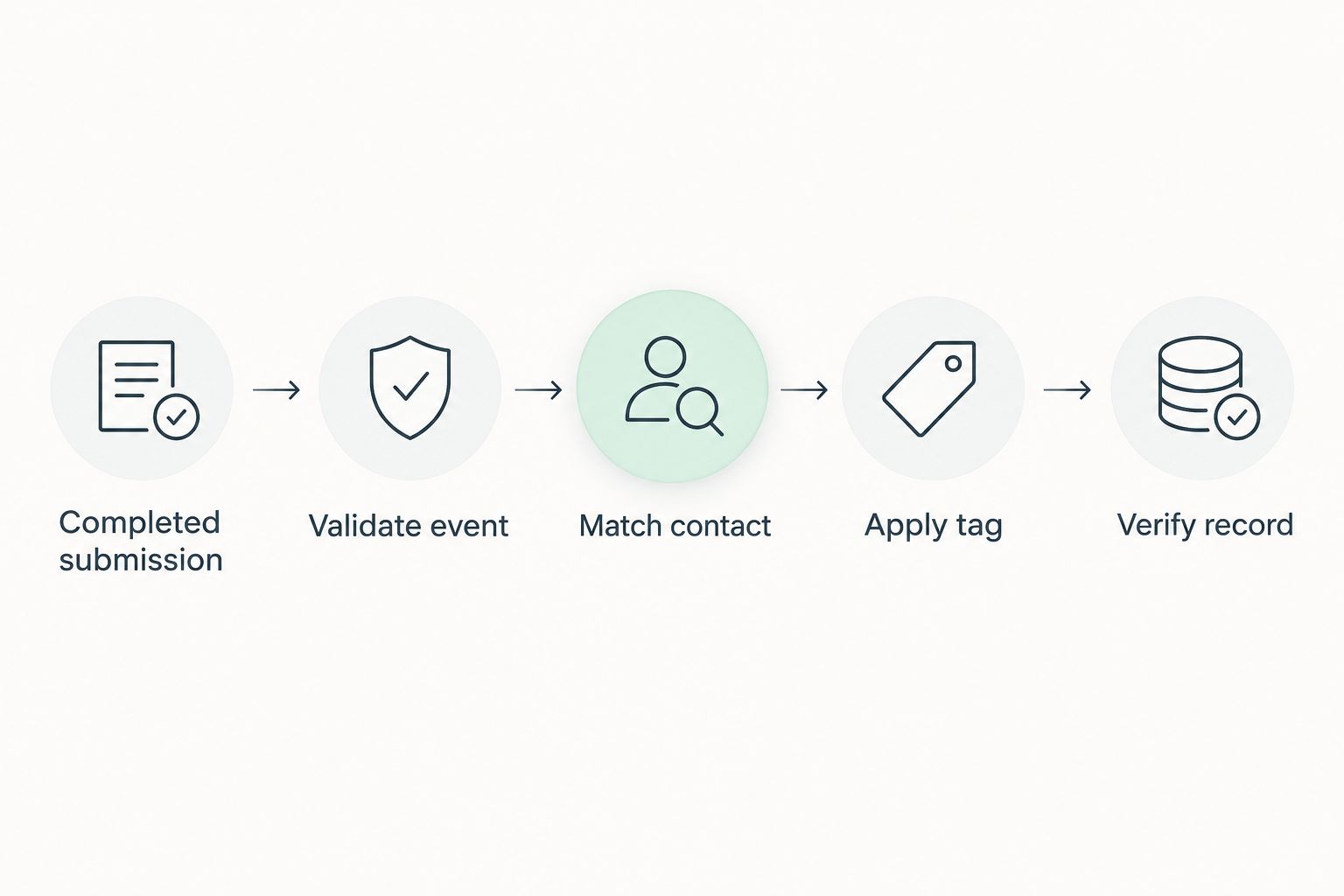
Match the Mailchimp contact
- Confirm the audience. A contact's email address alone is not enough to identify the record your campaign uses; search in the audience selected for this workflow.
- Normalize the email for the API lookup. Mailchimp's member endpoint identifies a contact with
subscriber_hash, the MD5 hash of the lowercase email address. Generate it on the server from the submitted address rather than asking the participant to provide it. - Check whether the contact exists. Use Mailchimp's member lookup for the selected audience and
subscriber_hash. If it does not exist, stop the tag-only route and handle contact creation under your separate permission process. - Check the contact's email status before messaging. An existing Mailchimp record is not, by itself, approval to send a marketing campaign. Your sending rules must use the contact's status and the permission you recorded.
Expected result: The workflow has matched one intended contact in the selected audience or has stopped with a clear missing-contact outcome. A missing record is not a reason to silently add a person to marketing email.
This boundary is especially useful when a quiz is embedded in a campaign that attracts both existing subscribers and new visitors. In 2026, document how each group enters the audience before enabling the tag action. Otherwise, a successful test with an existing contact can hide a failed path for everyone else.
Apply and verify the answer tag
- Build the Mailchimp tag update. For the matched contact, use the member-tags endpoint with the selected
list_idandsubscriber_hash. In the request body, set tags to an array containing an item with name equal to your mapped tag and status set toactive. - Send the request from the secured workflow. Authenticate with the authorized Mailchimp API credentials. Do not put an API key in a quiz page, browser request or publicly visible script.
- Read the outcome. Treat an authentication failure, a missing member and an invalid request as different errors. Log enough context to retry or fix the mapping, but keep the API key and unnecessary quiz answers out of logs.
- Inspect the test contact in Mailchimp. Confirm that the expected tag appears on the intended audience member and that unrelated tags remain. Repeat with another mapped answer to catch a swapped or missing mapping.
Expected result: A completed quiz answer produces the mapped tag on the correct existing contact. The workflow reports failures instead of marking the submission as synced when Mailchimp rejects it.
Do not replace a subscriber's entire tag set to record one quiz answer. The member-tags update acts on the named tags; your workflow should request the change it intends, then verify the existing tags were not disturbed. This distinction matters when other campaigns use the same contact record.
Variant: change tags when a quiz answer is updated
A participant who retakes a quiz or revises an answer creates a second workflow decision. Choose whether Mailchimp should show the latest answer or retain all recorded interests. Neither policy is universally correct; the tag's stated meaning decides.
| Workflow | Best for | Action | Trade-off |
|---|---|---|---|
| Add a tag on completed submission | Keeping a record of answers given | Set the mapped tag to active after contact matching | Older answer tags can remain after a later change |
| Replace the answer tag on update | Segments meant to reflect the latest answer | Set the previous quiz-answer tag to inactive, then the new tag to active | Requires a reliable way to identify the previous tag |
For the latest-answer variant, use a dedicated group of quiz-answer tags. On an answer update, identify the old mapped tag from the prior response or the contact's current quiz tags, deactivate only that tag and activate the new one. Do not remove unrelated Mailchimp tags. Verify the final record after both changes; a partial failure can leave a contact with an outdated answer tag.
In 2026, make repeat submissions part of your test plan, not an edge case left for the first live campaign. Submit one answer, submit a different answer with the same email and inspect the contact after each event. If the quiz records a history of answers, keep that history in the system designated to hold it; a Mailchimp tag is a segment label, not a full response archive.
Troubleshooting
- The submission arrives, but no tag appears. Check the answer-to-tag map first, then inspect the Mailchimp response. An answer label that differs from the internal answer identifier can leave the workflow with no matching tag.
- Mailchimp cannot find the subscriber. Confirm the selected audience and calculate
subscriber_hashfrom the lowercase email address. If the contact is absent, route them through your approved contact-creation process instead of repeatedly sending tag requests. - The wrong contact receives the tag. Check which email field the quiz event sends. If a quiz collects more than one email field, map the participant's intended contact email explicitly and test the match before enabling tagging.
- An old answer tag remains after a retake. Decide whether tags represent answer history or the latest answer. If they represent the latest answer, deactivate the previous mapped tag as part of the update variant.
- The request works in a test tool but fails from the quiz page. Move the authenticated Mailchimp request to your server or secured automation connection. A browser-side request exposes credentials and is not the right place to maintain the contact-matching logic.
Investigate failures against the actual submission and Mailchimp response in 2026. A generic success message from the quiz proves that the participant finished the form; it does not prove that the correct contact was tagged.
Customize your workflow
Once the basic tag is reliable, use the same validated completion event for other destinations that serve a distinct purpose. Keep each destination's consent rules, identifiers and failure reporting separate. A Mailchimp tag organizes an email audience; it does not establish that a quiz answer belongs in an advertising audience or a CRM record.
For a custom Brainylab marketing quiz, start with the smallest useful answer map and a named owner for changes to quiz questions. If an answer is renamed, added or retired, review the mapping before the next campaign uses the segment. This is a maintenance task for the workflow, not something the participant should have to notice.
Do not add more tags merely because more answers exist. Give each tag a use: a specific segment, a follow-up decision or a reporting question. If no one can name that use, leave the answer in the quiz response record rather than sending another label to Mailchimp.
FAQ
How do you tag Mailchimp subscribers from quiz answers?
Send a completed quiz response to a secured workflow, match the email address to a contact in the intended Mailchimp audience and activate the tag mapped to the submitted answer. Verify the tag on a test contact before using the segment.
Does completing a quiz subscribe someone to Mailchimp marketing email?
No. A quiz completion and permission to receive marketing email are separate events. Record permission explicitly and apply your approved subscription process before sending campaigns.
Can a quiz tag someone who is not yet a Mailchimp contact?
A tag-only workflow needs a matching contact in the selected audience. If the contact does not exist, handle contact creation and permission separately before applying the quiz tag.
Which email address should the workflow use?
Use the participant email field designated for contact matching. If the quiz collects other email addresses, map the intended field explicitly and test it before enabling the workflow.
Should a new quiz answer remove an older Mailchimp tag?
Remove the older quiz-answer tag only when your tags are defined to represent the latest answer. If they represent answer history, retain it; never remove unrelated tags.
Where should the Mailchimp API key go?
Keep the Mailchimp API key on a server or in a secured automation connection. Do not expose it in the quiz page or a browser-side script.
How do you check that quiz tagging worked?
Submit a test response and inspect the matched contact in the intended Mailchimp audience. Confirm the mapped tag appears and unrelated tags remain.
One last thing
Test the missing-contact path before the successful one. A workflow that tags an existing test subscriber can still fail for every new quiz participant. In 2026, the useful result is not just a successful tag request; it is a clear, permission-aware outcome for both matched and unmatched email addresses.