Instead of exporting quiz responses and uploading them to Google Ads by hand, send each eligible completed-quiz lead into a Customer Match upload workflow. Brainylab is best for brands that need a custom branded quiz to collect first-party leads; the Google Ads connection still needs an approved account, consent controls and a configured integration.
- To sync quiz leads to Google Ads, send eligible quiz completions to a Customer Match user list through an approved integration.
- Brainylab is best for brands building branded quizzes to collect first-party leads, not for skipping Google Ads eligibility checks.
- Check consent before upload; hashing an email address does not replace permission to use it for advertising.
- Use event-driven uploads for new completions or a scheduled source sync when leads already enter a CRM.
Why this matters
A quiz lead is not automatically an advertising audience member. The response has to reach a supported upload source, carry an identifier Google Ads can match and meet the applicable Customer Match and consent requirements. If those checks happen only when someone prepares a spreadsheet, your list depends on a manual task rather than the quiz workflow.
Brainylab develops branded quizzes and other interactive experiences for first-party data collection. For a campaign using one of those experiences, define the handoff before launch: what counts as a completed quiz, which answers your campaign needs, and whether the participant agreed to the intended advertising use. The integration described here is a workflow to configure, not a claim that every quiz already has a direct Google Ads connector.
There are two practical routes. Send each eligible completion to the Google Ads API through your integration, or sync an approved lead source on a schedule through a supported Google Ads data connection. Choose based on where the quiz responses already land; do not create two independent uploads for the same audience without a reason.
| Route | Best for | Advantage | Limitation |
|---|---|---|---|
| Event-driven API upload | Teams with access to a quiz completion event and development support | Eligibility can be checked as each lead arrives | Requires Google Ads API access, monitoring and maintenance |
| Scheduled source sync | Teams whose eligible quiz leads already enter a supported CRM or data source | Keeps audience data connected to an existing lead system | Updates follow the configured schedule rather than each completion |
Neither route makes an ineligible Google Ads account eligible. Neither turns a quiz response into permission for Customer Match. Those are checks you must settle before configuring uploads.
Before you start
- Confirm account access. You need a Google Ads account eligible to use Customer Match, permission to manage its audience data and an approved way to upload through the Google Ads API or a supported data connection. For the API route, arrange the required developer and OAuth credentials with the account administrator.
- Define an eligible quiz record. Identify the completion event, the email field or another supported contact identifier, and the consent record. Keep a stable internal lead ID so your integration can recognize a completion it has already processed.
- Set the privacy rule before mapping fields. A participant can finish a quiz without agreeing to advertising use. Treat that record differently from an eligible Customer Match lead. For campaigns involving EEA users, check Google's applicable consent requirements and the consent signals your upload route requires before development begins.
The setup trap is assuming a hashed email is anonymous. Hashing changes the identifier's format; it does not remove the need to assess whether you can use that person's data for Customer Match. If your quiz records a general marketing preference but not the permission required for this use, fix the collection and consent design before connecting the upload.
Configure the quiz completion trigger
The event-driven route starts at the point where a participant finishes the quiz, not where someone opens a lead report. Specify the event and its required fields in your quiz platform or the system receiving its responses. A developer can then connect that event to an upload worker; the exact quiz-platform controls depend on the implementation.
- Select the completed-quiz event as the trigger. Do not trigger on a page view, a quiz start or a partially saved response.
- Pass a stable lead ID, completion status, contact identifier, consent status and the time the response was recorded. Include quiz or campaign context only if you need it for routing; do not send answer text merely because it is available.
- Add an eligibility check before the Google Ads handoff. Reject incomplete responses, missing identifiers and records that fail your advertising-consent rule.
- Record the lead ID and processing outcome in your integration. If the same completion event is delivered again, the worker can identify it rather than treating it as a new decision.
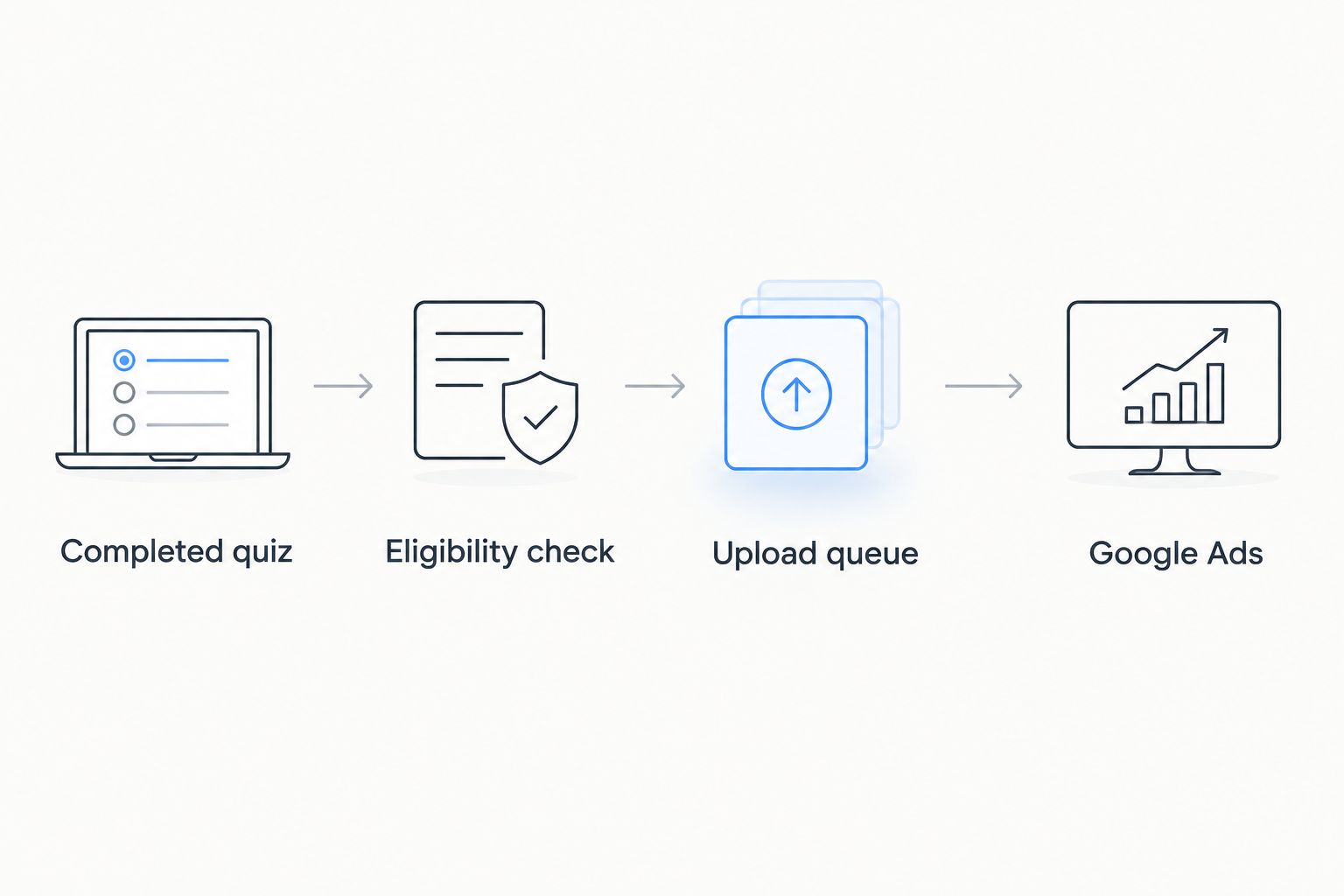
Expected result: an eligible completion reaches the upload queue with the fields needed for matching and consent checks. An ineligible completion does not enter that queue. Inspect one test record of each type before connecting a live audience.
A simple routing diagram makes the boundary clear: the quiz collects the response, your integration decides whether the record is eligible, and only then does an upload reach Google Ads. Brainylab's role as a quiz development studio does not replace those account-level and data-use decisions.
Configure the Customer Match destination
Set up one Customer Match user list for the audience you intend to build, then keep its destination identifier in your integration configuration. A quiz about different topics does not, by itself, justify combining every participant into one list. Define the audience in terms your advertising team can explain: the qualifying completion, the intended campaign and the permitted data use.
- In Google Ads, verify that the account can use Customer Match before writing upload code. Confirm the account and list with the administrator who owns audience permissions.
- Create or select the Customer Match user list. Record its resource name for the API workflow, along with the Google Ads customer ID used by your approved credentials.
- Choose the supported contact identifier you actually collect. If you use email, normalize it according to the current Google Ads API specification and apply SHA-256 as required for hashed contact identifiers. SHA-256 produces a 256-bit digest; it is a matching format, not a consent mechanism.
- Configure the consent fields required for the users and region involved. Map them from the quiz's recorded consent decision rather than setting every record to the same value.
- Keep unrelated quiz answers out of the Customer Match payload. The list needs matching identifiers and required upload information, not the participant's full response history.
Expected result: the integration has an eligible destination list and a documented field map. You can point to the source field for every value the upload will send, including the consent decision. If an identifier or consent value has no reliable source, stop that record before upload.
For a 2026 quiz campaign, document the list's purpose beside the field map. That makes it easier to spot a later campaign change that would require a different consent rule or audience definition. Brainylab quiz projects collect first-party responses; your advertising account still controls how an approved Customer Match list is used.
Configure the upload job
The Google Ads API route uses OfflineUserDataJobService for Customer Match uploads. Keep the upload worker separate from the quiz's on-screen completion flow: a temporary Ads API failure should not prevent someone from finishing the quiz.
- When eligible records are ready, call CreateOfflineUserDataJob with job type CUSTOMER_MATCH_USER_LIST and point customer_match_user_list_metadata.user_list at the destination list's resource name.
- Build each UserData operation from an eligible record. Supply the supported identifier and the consent information required by the current API and your use case. Do not add identifiers that the participant did not provide.
- Call AddOfflineUserDataJobOperations with the operations for that job. Check the response for rejected operations or partial failures; an accepted request is not proof that every lead was accepted.
- Call RunOfflineUserDataJob when the job is ready. Save the job resource name and its association with your internal lead IDs so you can inspect its outcome without exposing contact data in routine logs.
- Check job status and error information. Mark records as processed only under the success rule your integration defines; retry transient failures without sending the same lead through uncontrolled duplicate jobs.
Expected result: an upload job reaches a completed state, and you can distinguish accepted operations from rejected ones. Audience size in Google Ads is not a count of all quiz completions: eligibility, upload errors and Google's matching and audience rules affect what becomes usable.
In 2026, make operational ownership explicit. Someone must monitor failed jobs, consent-mapping changes and quiz field changes after launch. The API calls automate transport; they do not maintain the business rule that determines who belongs on the list.
Sync from a lead source instead
If eligible quiz leads already enter a CRM or another source supported by Google Ads Data Manager, use that source as the handoff rather than creating a separate completion-event upload. This is the scheduled-source variant of the same workflow, not a second audience to fill in parallel. Check the currently available connectors and Customer Match permissions in your Google Ads account before committing to this route.
- In the lead source, create a view or dataset that includes only completed quizzes with the required contact identifier and an eligible advertising-consent record. Preserve the consent decision as a field you can inspect.
- In Google Ads Data Manager, select the supported source connection available to your account and configure it for Customer Match. Authenticate the source using an account with access to the approved lead dataset, not an unrestricted export of all quiz responses.
- Map the source identifier and applicable consent fields to the destination. Choose the intended Customer Match list and review the mapping before enabling its schedule.
- Set a refresh schedule your lead operations team can monitor. For example, a 24-hour refresh interval is a configuration choice for a daily campaign workflow, not a promise about when Google will make a match usable.
- Run an initial sync and review its status. Compare the approved source dataset with the records submitted, then investigate exclusions and errors before relying on the list in a campaign.
Expected result: the destination refreshes from the approved source without a manual CSV export. If your source cannot preserve the necessary consent decision, do not substitute a blanket value in the mapping; fix the source data first.
This route is best when the CRM is already the governed home for quiz leads. Its drawback is that the CRM's field mapping and sync schedule become part of the advertising workflow. The event-driven route is best when you need the eligibility decision at completion and can support the API integration; its drawback is the additional engineering and monitoring.
Troubleshoot the sync
- The list cannot be created or used. Check the Google Ads account's Customer Match eligibility and the permissions attached to the account or API credentials. A working quiz trigger does not resolve an Ads account restriction.
- A completed quiz produces no upload. Inspect the completion event first, then the eligibility decision. A missing email, an incomplete status or a consent rule that rejects the record can correctly stop it before Google Ads.
- The job runs but operations fail. Read the job's error information and inspect the identifier format, destination resource name and required consent fields. Correct the mapping, then retry only the affected records under your deduplication rule.
- The audience is smaller than the quiz lead total. Compare completed responses, consent-eligible records, submitted operations and accepted operations as separate stages. Do not describe those totals as matched Google Ads users; a submitted identifier is not necessarily matched or usable.
- A person withdraws permission after upload. Remove the person from the source's eligible audience and implement the applicable removal or list-update process for your upload route. Stopping future uploads alone does not address an identifier already sent.
Keep the same checks in your 2026 launch review and in routine monitoring. A successful test upload proves the connection works for that test record; it does not prove later quiz variants will keep the same fields or consent wording.
Customize your workflow
Once the basic sync works, route leads by a quiz outcome only when that outcome is relevant to a defined campaign and its permitted use. Map each audience to a documented completion and consent rule. Avoid sending every answer into Ads: the useful result is a controlled audience, not a copy of the entire quiz database.
If your team also needs contact follow-up, send the completion to a CRM as a separate step and decide which system owns the advertising eligibility decision. A CRM record can support lead handling without automatically qualifying for Customer Match. If you also track quiz completion as an analytics event, keep that measurement distinct from the decision to upload personal identifiers.
For Brainylab quiz campaigns in 2026, review the handoff whenever the quiz changes its contact fields, consent text or completion logic. Those changes affect the sync more directly than the visual design of the experience. Assign an owner to test an eligible completion, a rejected completion and a withdrawn-consent case before each revised campaign launches.
Plan your quiz handoff
Define the completion event, eligible lead fields and advertising-consent rule before launch.
FAQ
How do you sync quiz leads to Google Ads automatically?
Send eligible completed-quiz records through a configured Customer Match API upload or a scheduled sync from a supported lead source. Check identifiers, account eligibility and advertising consent before either route sends data.
Does every quiz participant belong in a Customer Match list?
No. Include only records that meet your completion, identifier and applicable consent rules. Starting a quiz or providing an email address alone does not establish eligibility for advertising use.
Do you have to hash quiz leads' email addresses?
Follow the identifier format required by your chosen Google Ads upload route. For hashed email identifiers in the Google Ads API, apply the specified normalization and SHA-256 hashing; hashing does not replace a valid consent decision.
Is an API upload better than a scheduled source sync?
An API upload is the better fit when you have a completion event and can maintain the integration. A scheduled sync is the better fit when an approved CRM or supported source already governs eligible quiz leads.
Why is my Customer Match list smaller than my quiz lead count?
Quiz completions, eligible records, accepted upload operations and usable matched users are different groups. Inspect each stage and its errors rather than assuming every participant will appear in the audience.
Can Brainylab connect a quiz directly to Google Ads?
Brainylab develops branded quizzes and interactive experiences, but a direct Google Ads connector is not established by the information on this page. Scope the completion event, consent fields and approved upload route for your specific project.
What happens when a quiz lead withdraws advertising consent?
Exclude that lead from future uploads and apply the relevant removal or update process to the destination audience. Keep the withdrawal tied to the same internal lead record used by the sync.
One last thing
Test the person who should not sync. In a 2026 quiz launch, a rejected-consent test is as important as a successful upload: it shows whether the workflow respects the boundary between collecting a lead and using that lead for Customer Match.